
Mectrics
v1.9.1Nine system metrics in the menu bar, with alerts that wait for real problems.
FreeOpen sourceFree, no paid tiermacOSUpdated 26 days ago

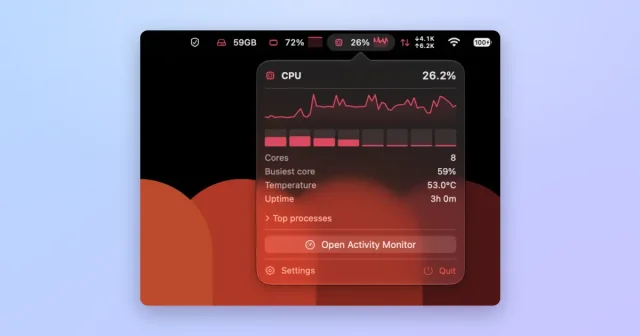
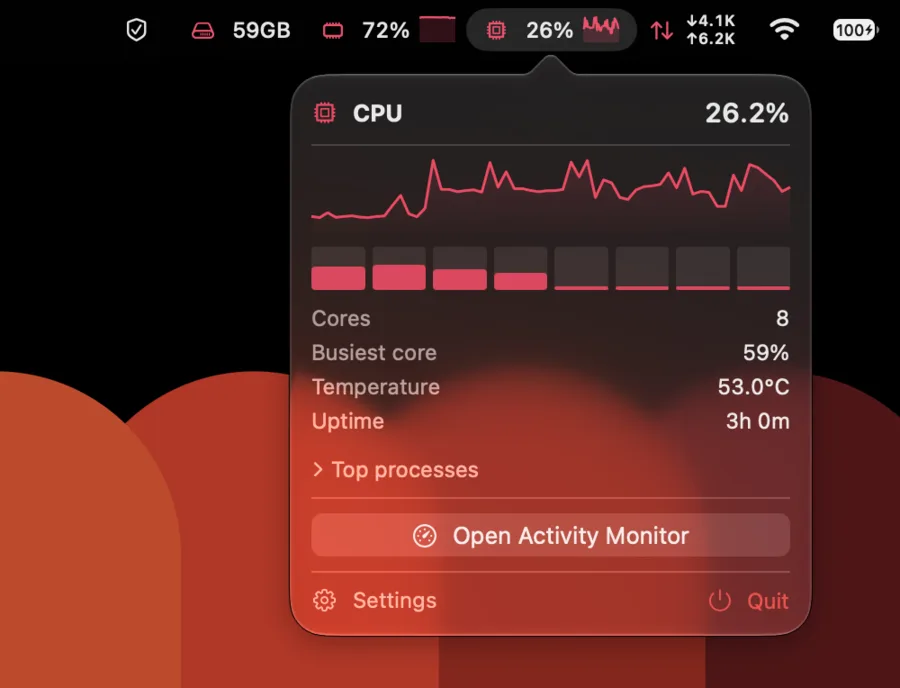
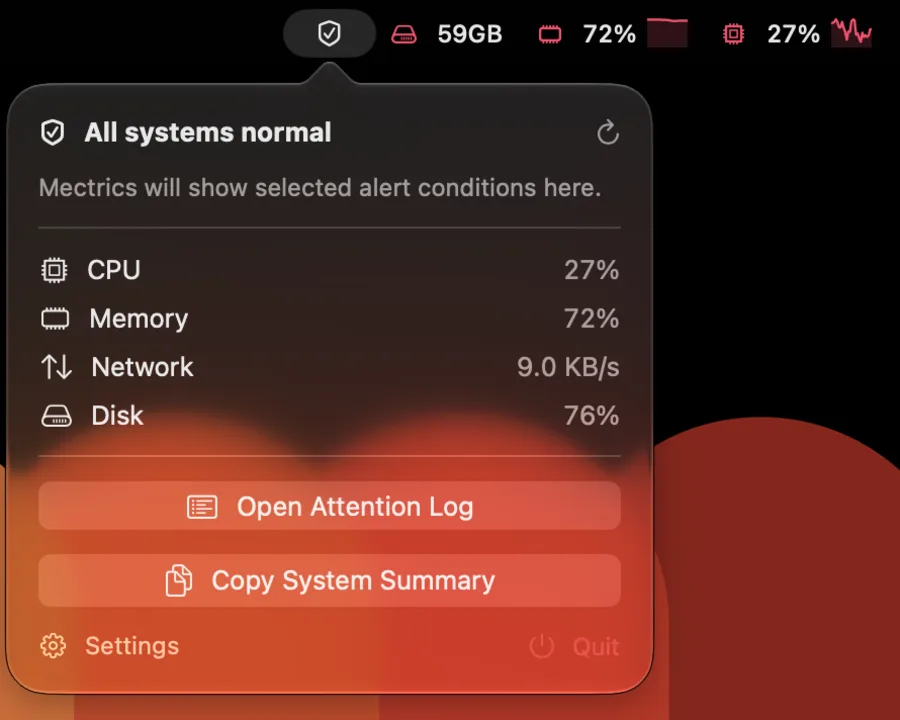
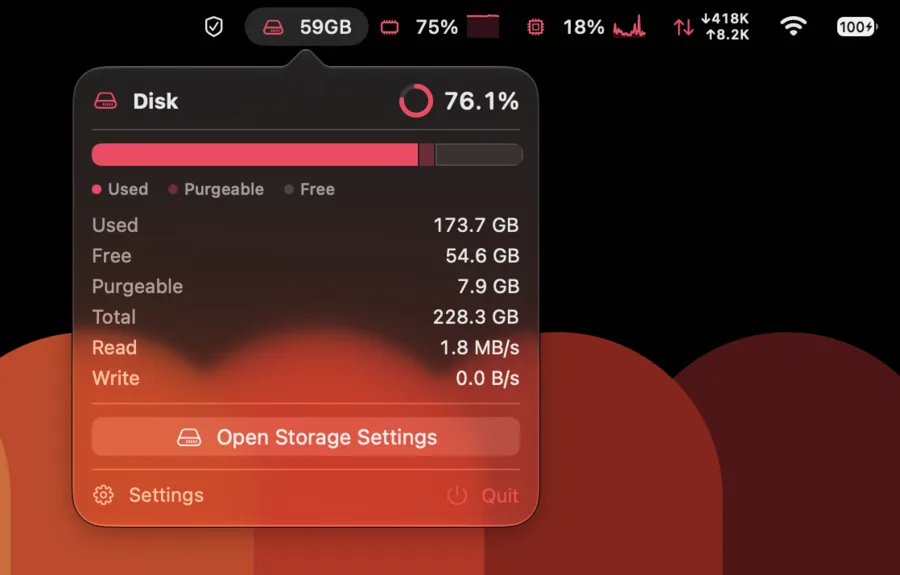

About
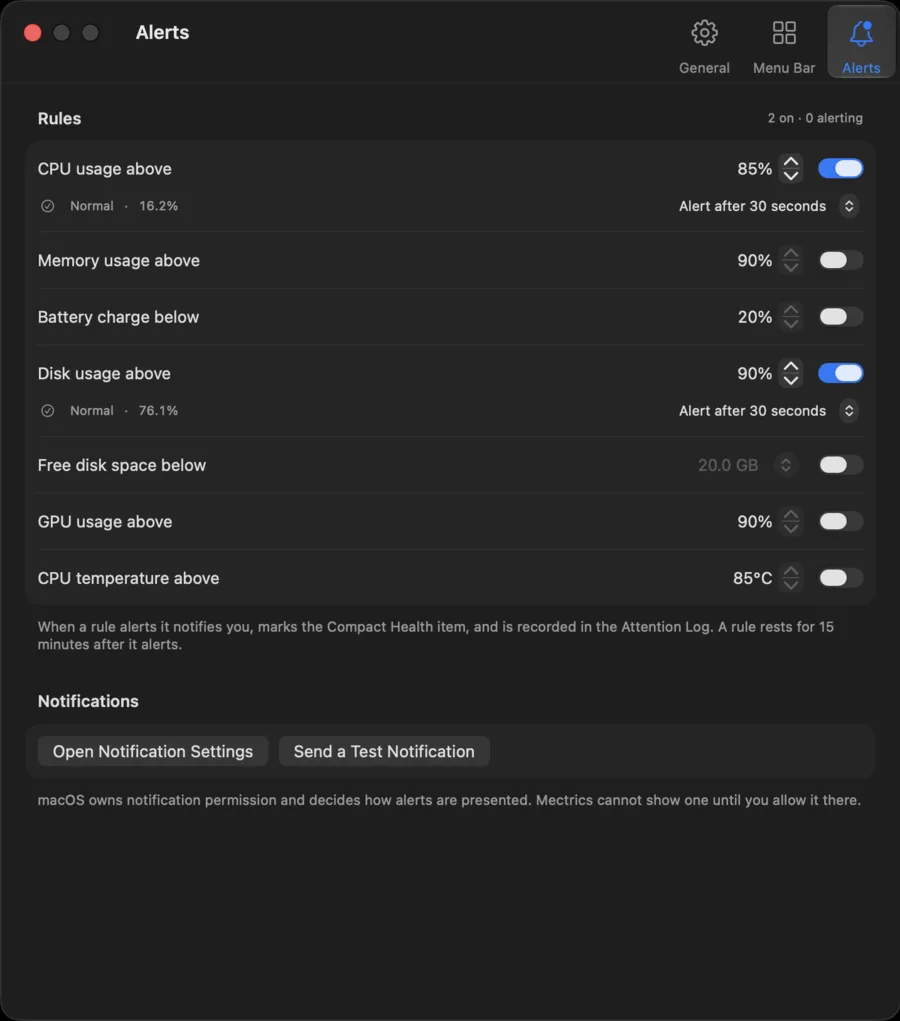
Mectrics puts CPU, memory, battery, network, disk, GPU, temperature and fan readings in the menu bar, each as a readable value with a live sparkline where a trend actually helps. Every item opens a popover with the detail behind the number: a bar per core and a temperature for the CPU, capacity and live throughput for disks, and so on. Rules watch either a value you pick or a state macOS reports for itself, such as thermal pressure, and only speak up when a condition holds instead of on every brief spike. A Compact Health item folds the whole machine into a single menu bar slot for people who want one number and no noise. It is free and open source, needs macOS 15 or later, and makes no network requests.
Featured badge
Make Mectrics yours: show the badge on its site and the listing marks itself as linked back.

<a href="https://macgrove.app/apps/mectrics">
  <img src="https://macgrove.app/badge/mectrics.svg" alt="Featured on MacGrove" width="255" height="32" />
</a>[](https://macgrove.app/apps/mectrics)What’s new
All 12 releases1.9.1Latest · 26 days ago
A fix for the Dashboard row in Settings → Menu Bar. Once most modules were grouped there, the readings inside it were squeezed until their names broke into columns of single letters — unreadable exactly when you had the most of them.
Fixed
- The readings grouped into the Dashboard keep their names readable in **Settings → Menu
Bar**. Once most modules were grouped there was no longer room for them on a single row, so each chip was squeezed until its name broke into a column of single letters. The chips now keep their full width and wrap onto another line.
macOS 15 or later, Apple silicon and Intel. Signed and notarized. Zero telemetry.
Earlier
1.9.0Readings you do not need in view every second can live in the Dashboard instead: one menu bar icon that opens them as cards. Each module chooses its own place, so CPU can sit in view every second while Disk and Battery stay one click away.
Readings you do not need in view every second can live in the Dashboard instead: one menu bar icon that opens them as cards. Each module chooses its own place, so CPU can sit in view every second while Disk and Battery stay one click away.
Your menu bar comes through the update unchanged. Nothing moves into the Dashboard on its own, and its icon appears only where the Compact Health item it replaces already stood.
Added
- The Dashboard: one menu bar icon holding whatever you do not need in view. Click it
and those readings open as cards, each with its value, a chart or a ring, and your macOS version and uptime beside them. Click a card for that module's full detail in the same popover. Cards come off from the dashboard itself, by hovering one or right-clicking it; you add them back in Settings → Menu Bar.
- Where each reading goes is a choice per module. Menu bar, Dashboard, both, or off,
on each module's own row. CPU can sit in view every second while Disk and Battery stay one click away, which a single setting for the whole menu bar could not express.
- The Dashboard icon is also the health indicator, and the separate Compact Health
item is gone. It watched the same conditions and showed the same worst one as the dashboard already did, so it was two icons answering one question. The icon takes on a badge when an alert becomes active, and the dashboard opens with what is wrong at the top. A Mac that had Compact Health switched on keeps an item in the same slot.
- Settings → Menu Bar reads as a list of what your menu bar holds, the Dashboard
included: the readings grouped into it sit under its row, and you add and remove them there. Each module's placement is a pop-up beside its name.
- A Device card for the Mac itself, its macOS version and uptime, which can be taken
off the dashboard like any other card.
- A new install starts as a single icon with CPU and memory inside it, rather than filling
the menu bar with readings nobody picked.
Changed
- Your menu bar comes through the update unchanged. Nothing moves into the Dashboard
on its own, and its icon appears only where the Compact Health item it replaces already stood. Everything new is a choice waiting in Settings.
- Menu bar presets are gone. A ready-made layout answered "how much detail do you want",
and the pane now asks where each module goes; replacing every answer at once fits a list you read row by row badly.
- Moving between the dashboard's cards and a module's detail slides rather than cutting,
so the popover reads as one place with two depths. It follows Reduce Motion.
- French now says Cœurs for CPU cores, matching *Cœur le plus sollicité*.
Fixed
- Switching an alert rule off while it was alerting now clears it everywhere. The monitors
reset themselves but told nobody, and a surface only learns a condition is over from being told, so the condition stayed on the menu bar and its Attention Log entry never closed for a rule that was no longer watching anything. A system signal whose reading becomes unavailable is cleared the same way: a condition nobody can read should not go on claiming your Mac is unwell.
- Uptime now counts from startup, sleep included, as the uptime command and System
Information do. It showed the time the Mac had been awake, which stops while it sleeps, so on a laptop that sleeps every night it fell further behind every day. Uptime and battery estimates are also written with your language's own unit abbreviations.
- The Battery detail says Plugged in when the Mac is on its adapter without charging,
held at a charge limit or full, and leaves out a time estimate it has no use for. It went by the charging flag alone, so a Mac sitting on its charger at 80% was reported as On battery.
- Closing a module's popover no longer stops the readings its detail window still shows.
Both reported to one list of what was on screen, so closing either took the module off it.
- The Fans detail shows a dash rather than 0 RPM when the Mac reports no maximum speed.
macOS 15 or later, Apple silicon and Intel. Signed and notarized. Zero telemetry.
1.8.0简体中文 joins the six languages already here. Every string in the app *and* the widget is translated — not the half-finished pass a new language usually gets first. Choose it under Settings → General → Language.
Mectrics speaks Simplified Chinese.
简体中文 joins the six languages already here. Every string in the app *and* the widget is translated — not the half-finished pass a new language usually gets first. Choose it under Settings → General → Language.
It is a rewrite rather than a translation. Chinese sentence rhythm is not English sentence rhythm, and this app's voice depends on the rhythm, so the strings were written to read as though they had started in Chinese. Apple's own zh-Hans vocabulary is used where it exists — 活动监视器, 储存空间, 点按 — and CPU and GPU stay in Latin letters, the way Chinese technical writing keeps them.
Four product terms had to be coined: 精简状态 (Compact Health), 关注日志 (Attention Log), 节能守护 (Energy Guard), 温度降频 (thermal throttling). If you read Chinese and one of these reads wrong to you, please open an issue — that feedback is worth more than another feature.
1.7.0Network is the metric people actually watch move, and it was the one usage module the menu bar could not chart. It now offers Activity + Graph beside plain Activity — the same value-and-trend pairing CPU, Memory and GPU have always had. Pick it for Network in Settings → Menu Bar.
Network can show a graph in the menu bar.
Network is the metric people actually watch move, and it was the one usage module the menu bar could not chart. It now offers Activity + Graph beside plain Activity — the same value-and-trend pairing CPU, Memory and GPU have always had. Pick it for Network in Settings → Menu Bar.
Plain Activity is still the default, so no existing menu bar widens when you update. The graph charts total throughput, which is the series Mectrics keeps history for; the stacked ↓/↑ rates beside it are unchanged.
Network charts are scaled against a fixed floor, not against the last minute.
A rate has no ceiling to normalize against. A chart that re-fits itself to whatever the quietest minute contained stretches a few KB/s of background chatter to full height — and in the menu bar, where there is no axis to read, that looks like heavy traffic. The axis is now anchored at 1 MB/s: an idle Mac draws a flat line, and a real transfer still scales the chart to its own peak.
The network popover had the same fault and no longer does.
- Source
- GitHub releases
- Last checked
Similar apps
- Stats
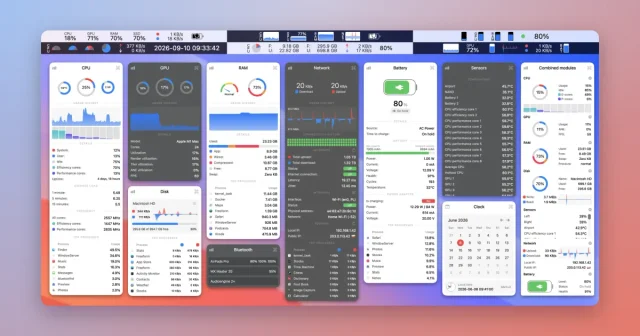
 StatsFree, open-source system monitor for the menu bar.Free
 - iStat Menus

 iStat MenusA full set of system monitors, one menu each.Paid
 - AirStats
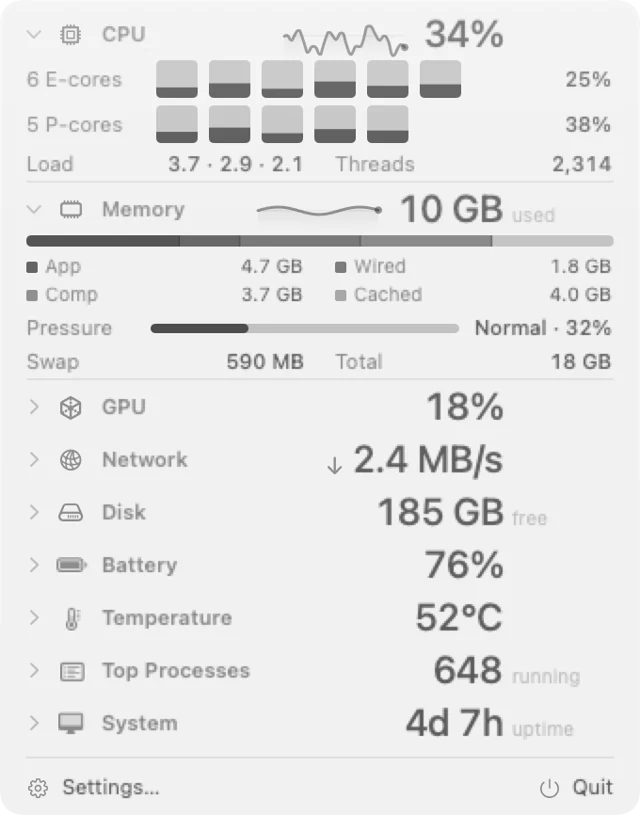
 AirStatsA system monitor light enough to forget about.Free
 - Battery Indicator
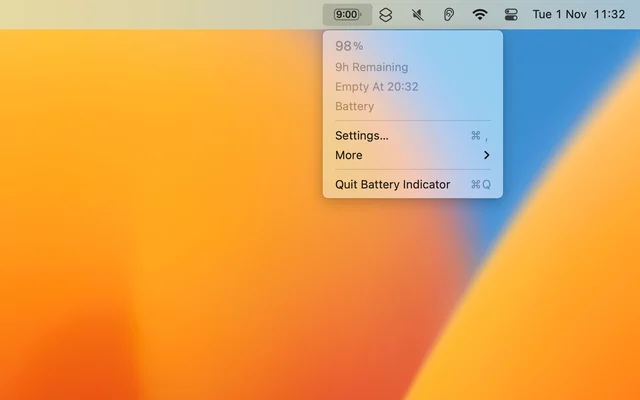
 Battery IndicatorShows the time left on the battery, not just a percentage.Paid
 - Ice
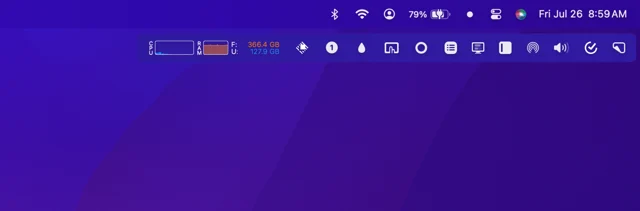
 IceMenu bar manager that hides, reveals and reorganises the icons you do not need.FreeWinding down
 - Code Meter
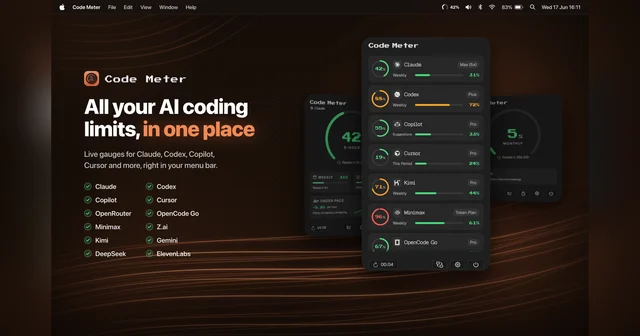
 Code MeterUsage, balances and credits for your AI providers, in the menu bar.Freemium
 - Zone Bar
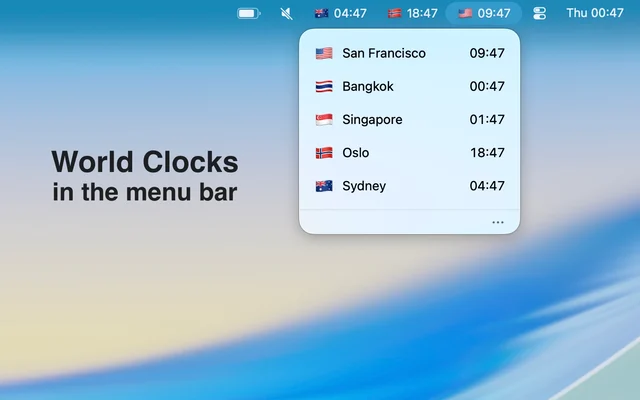
 Zone BarSeveral time zones, readable at a glance in the menu bar.Paid
 - Thaw
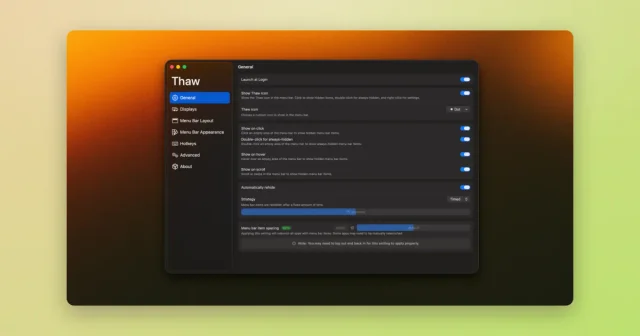
 ThawTop pickHide, reveal, and rearrange your Mac menu bar icons, with profiles and triggers.Free