
Klipto
v1.4.2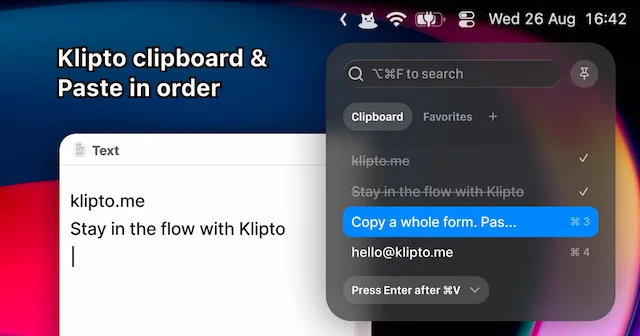
About
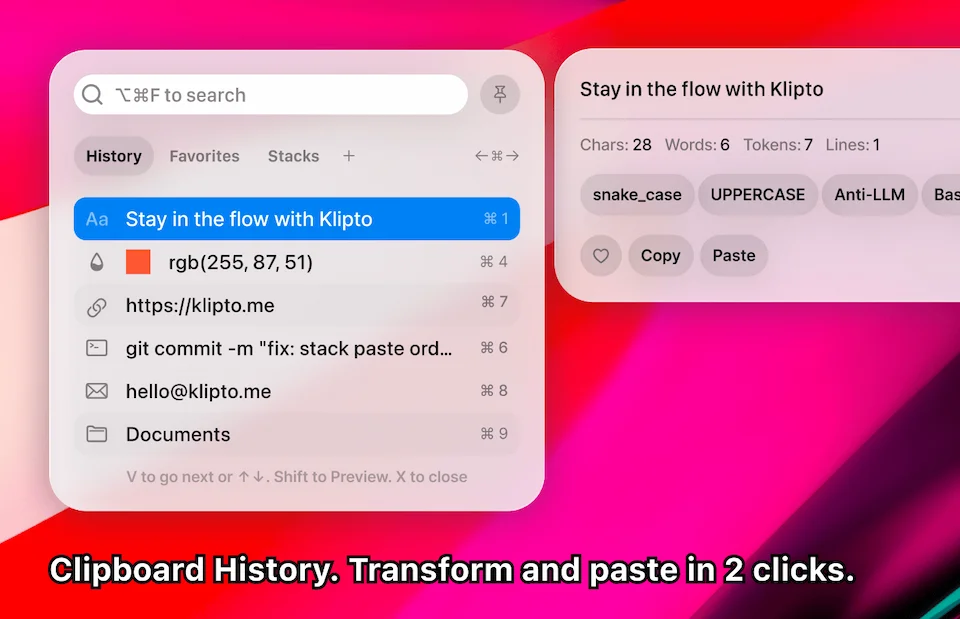
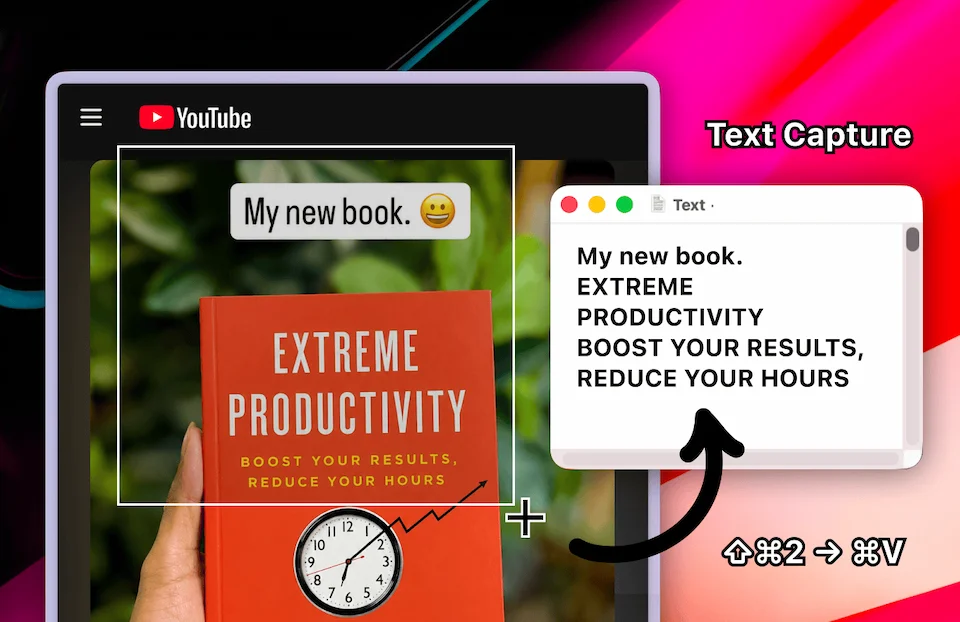
Klipto is a fast, native, privacy-first clipboard manager for Mac. History is only the starting point: Stack pastes copied values in sequence, while custom workflows can combine built-in transforms, regex replacements, and Apple Intelligence prompts. It also includes on-device OCR and translation, notes, favourites, and unlimited local history - with no account, cloud sync, analytics, external AI API, or subscription.
- Price
- Freemium
- Version
- 1.4.2 · Oct 10, 2026
- Platforms
- macOS
- Category
- Utilities
Featured badge
Make Klipto yours: show the badge on its site and the listing marks itself as linked back.

<a href="https://macgrove.app/apps/klipto">
  <img src="https://macgrove.app/badge/klipto.svg" alt="Featured on MacGrove" width="234" height="32" />
</a>[](https://macgrove.app/apps/klipto)What’s new
All 16 releases1.4.2Latest · 16 days ago
Split with AI, automatic transformations, and a quieter preview
New
- Split with AI. Select text and press ⌥⌘S — the Stack opens, and the built-in on-device model splits the text for you: names, email addresses, phone numbers, company names and postal addresses become separate items. The model only extracts what is actually in your text. Also in the preview’s Split menu.
- Automatic transformations. Give a transform chip your own conditions — content type, the app you copy from, the website, what the text contains — and switch on “Apply automatically”. The copy is transformed the moment you press ⌘C. The new Auto Fix Text chip already fixes text copied from Preview and from screenshots — switch it off in the Hub if you don’t need it. Transformed items get a magic wand and italics; to paste the original, use ⇧⌘V, ⇧Enter or ⇧-click.
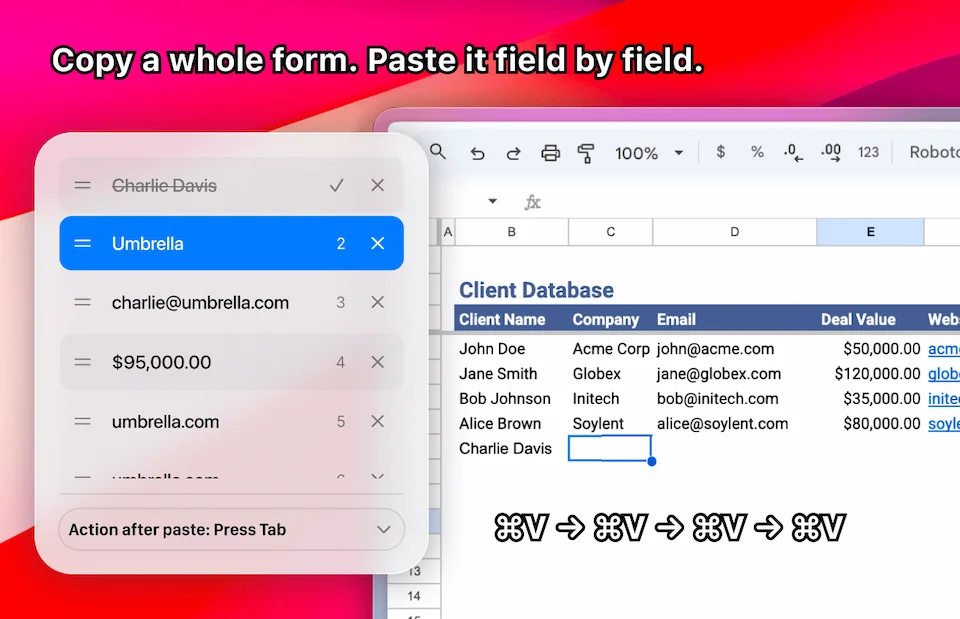
- Tables split by themselves. Rows copied from Sheets or Excel — and lists separated by semicolons — land in the Stack cell by cell, header skipped, no AI needed.
- Undo and redo in the preview. ⌘Z takes back the last chip or AI answer, ⇧⌘Z puts it back.
Earlier
1.4.1On-device AI, your own transform chips, and a shortcut for every folder
On-device AI, your own transform chips, and a shortcut for every folder
New
- On-device AI. On macOS 26 with Apple Intelligence, the new AI chip (or ⌘I) opens a prompt bar under a note or a preview: “make it shorter”, “turn into a list”, “fix the grammar”. The answer replaces the selection in place, ⌘Z brings the original back, and nothing leaves your Mac.
- Your own transform chips. Build a chip from a chain of steps — the built-in transforms, a regex replace, or a prompt for the on-device AI model. Open Preferences → Preview & Transforms and press “Create your own transformation”.
- A shortcut for every folder. Give any folder — Notes, Favorites, your own — a global shortcut, and Klipto opens right on it (Preferences → Favorites & Folders).
- Notes from a selection. Select text in any app and press ⌥⌘X: the new note opens already filled with it.
- Chips work on the selection. In a note, select a part of the text and the transform chips, prefixes and “Replace again” change only that part.
- Bigger text, bigger panels. The text-size step now widens the popup, preview, stack and notes too, so long lines stay readable.
Fixed
- Paste without formatting (⇧⌘V) is instant and reliable again — it no longer waits half a second or misses when the key is still held.
- Plain paste from rich editors no longer keeps **bold markers or ## headings** in the text.
- Markdown with a table is recognized as Markdown.
- A copied file path is a text entry again — the full path in the row, text chips in the preview — and “In Finder” still reveals it.
- The translation remembers the source language you picked instead of guessing it again on every item.
- Row numbers paste with ⌘1…⌘9 by default; bare digits type into the search. The old behavior is a switch in Preferences.
Every shortcut here can be changed in Preferences.
Enjoying Klipto?
I build it alone, and a post from you does more than any ad could. If you like it, say so in any network and tag me — I read everything and I’ll say thanks: @antonykors on X · @klipto.me on Threads · @klipto.bsky.social on Bluesky · @klipto@mastodon.social · @klipto.me on Instagram · YouTube
1.4.0Notes, full keyboard control, and a quick access bar
Notes, full keyboard control, and a quick access bar
New
- Notes. Press ⌥⌘X to start a new note, or ⌘E on anything in your history to turn it into one. It opens in a real editor — autosave, undo, find & replace, the transform chips, and a translation side by side. A note floats above what you are writing about and collapses into a small pill when you need the screen back.
- Split to History. Break a copied block into separate entries, one per line — then paste them one by one with ⌃⌘V.
- Just type to search. Let go of ⌘ and the popup starts typing: type to filter, arrows to move, a bare digit pastes that row. Keep ⌘ held and every chord works as before.
- The preview without the mouse. Tab moves between the preview’s controls and Space presses the focused one — chips, translation, Copy, Paste, Split, Edit. Klipto now runs end to end from the keyboard.
- Quick access bar. And if you would rather click: a floating cat that opens into history, favorites, notes and text capture. Drag it anywhere, right-click to hide it for an hour before a meeting, or switch it off for good in Preferences.
- Out of screen shares. Klipto’s windows are hidden from screen recording and screen sharing, so your clipboard never ends up on the call. Turn it off on the Home tab when you need Klipto in a demo.
Every shortcut here can be changed in Preferences.
1.3.1Hold-to-paste fix
Hold-to-paste fix
Fixed
- Double-tap ⌘ and hold pastes again. In 1.3.0, holding ⌘ after the double-tap while moving with the arrows, switching folders or simply waiting, then releasing, left the popup open and pasted nothing. Releasing now pastes the highlighted item and closes the popup, as before; a quick tap-tap-release still just opens the popup.
- The changelog page on klipto.me is regenerated with every release.
- Source
- The app's update feed
- Last checked
Similar apps
- Clipster

 ClipsterLightweight clipboard manager with pins and instant searchFreemium
 - Pastea
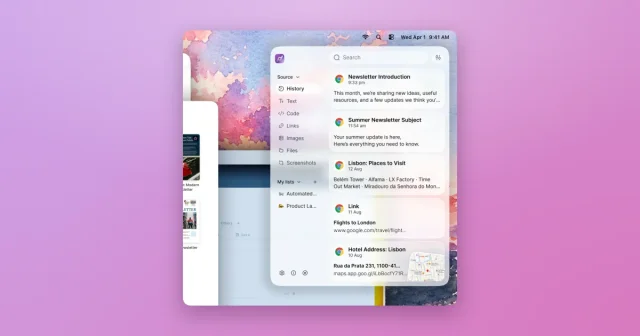
 PasteaSearchable clipboard history for macOS that remembers everything you copy.Paid
 - Just Copy
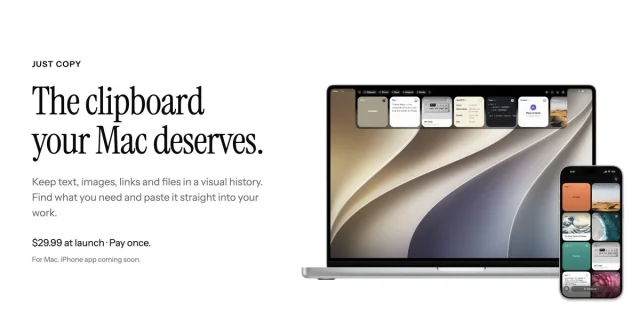
 Just CopyEverything you've copied, always within reach: a clipboard manager in your Mac's notchPaid
 - Maccy
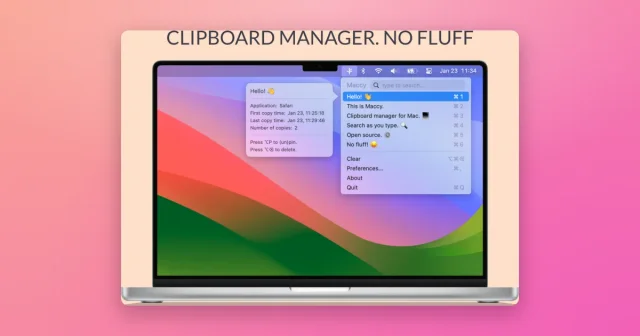
 MaccyTop pickLightweight, keyboard-first clipboard history with instant search.Freemium
 - Speechmark
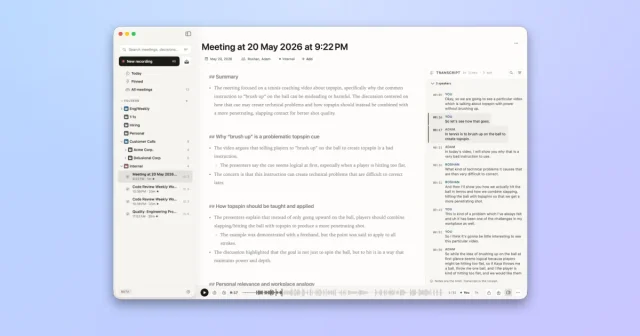
 SpeechmarkOn-device meeting notes for Mac that never send your audio anywhere.Paid
 - Buffer
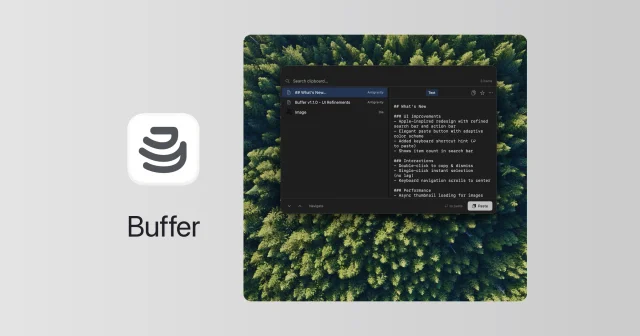
 BufferFree, open-source clipboard history that also reads the text in copied images.Free
 - Supaste
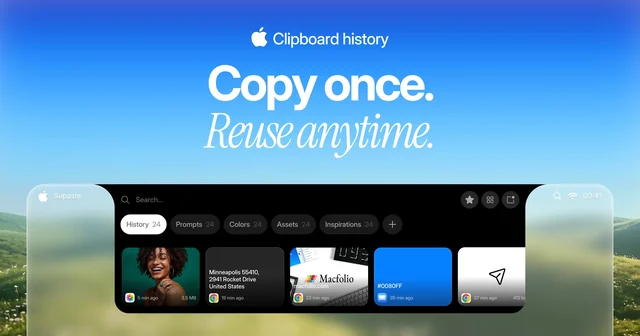
 SupasteClipboard and screenshot history in a panel that drops from the notch.Paid
 - MumbleFlow
 MumbleFlowLocal Mac dictation with Oat meeting notes and cited searchPaid