
Pelmet
v0.3.3, released this weekA calm menu bar manager built for the macOS 27 menu bar.
FreeOpen sourceFree, no paid tier; GitHub Sponsors donations welcomemacOSUpdated yesterday

About
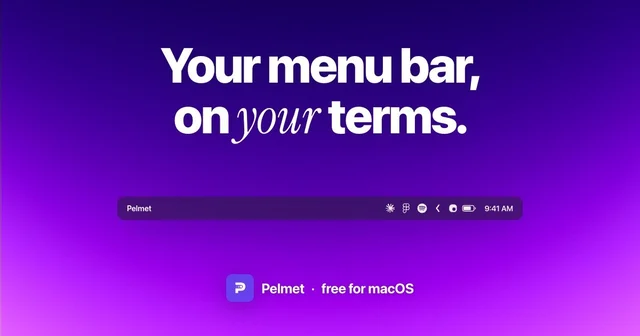
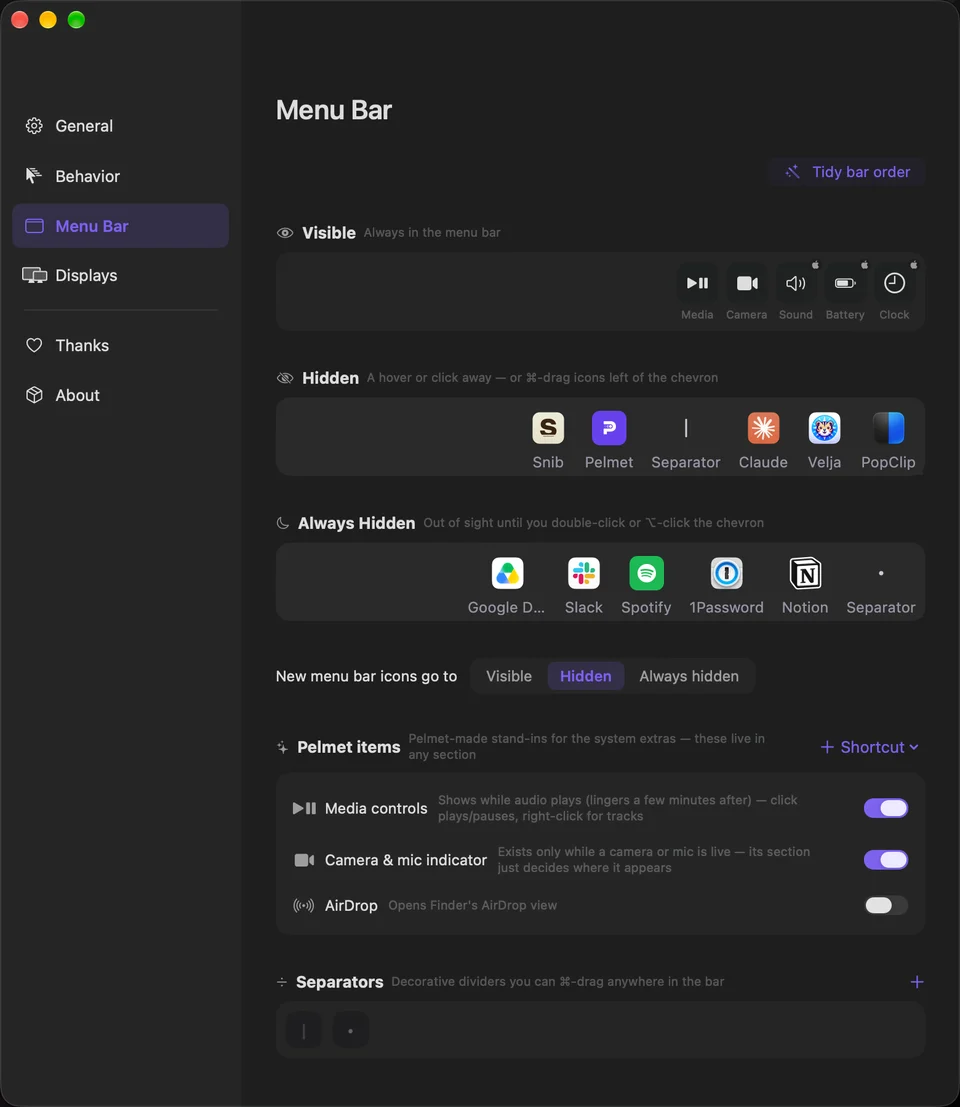
Pelmet hides the menu bar icons you do not need and brings them back on hover, a click on empty bar space, or a shortcut. Icons sit in three sections, Visible, Hidden and Always Hidden, which you arrange in a layout editor with real icon previews or by Command-dragging them right in the bar. It was built for the menu bar Apple rebuilt in macOS 27 and lets macOS itself do the hiding, so it keeps working where older managers broke. System items like Sound and Battery can be hidden too. Native Swift, no account and no analytics. Free and open source, and it needs macOS 27 or later.
Featured badge
Make Pelmet yours: show the badge on its site and the listing marks itself as linked back.

<a href="https://macgrove.app/apps/pelmet">
  <img src="https://macgrove.app/badge/pelmet.svg" alt="Featured on MacGrove" width="243" height="32" />
</a>[](https://macgrove.app/apps/pelmet)What’s new
All 22 releases0.3.3Latest · yesterday
> Your icons stay in the order you gave them. Until now Dimble only kept each icon in its section. Now the layout editor is the order your bar keeps. When macOS or an app shifts an icon, Dimble puts it back on its own, about ten seconds later, the next time you pause. Updating rearranges nothing. > > Each display can show hidden icons its own way. Your monitor can reveal in the menu bar while your MacBook uses the panel or a row. A display set to show all its icons now keeps them out wherever the pointer is (#88, thanks @wyaqoob).
Nine betas went into this one. There's also a Quick Note item, a Small Dot icon and Type to Siri, plus fixes for the clock and for full menu bars.
New:
- Icons stay in your order, not just in their section. macOS sometimes re-places a system icon like Wi-Fi or Battery, an app relaunches somewhere else, or a separator lands in a new spot. Dimble moves it back to where the layout editor shows it. It waits until the icon has sat out of place for about ten seconds and you've left the mouse and keyboard alone. The pointer hides for the moment it takes, and there's at most one pass every two minutes. After two tries on the same icon it stops, and what it couldn't put back still counts on the Apply button. It's part of "Keep sections grouped", on by default. defaults write app.fif7y.Pelmet pelmet.keepSectionsGrouped -bool false turns every automatic move off.
- Each display gets its own "Show hidden icons in" in Settings › Displays, so it can use the menu bar, a panel or a row. Displays left on "Same as Panel tab" follow Settings › Panel (#88, thanks @wyaqoob). On a display that shows all its icons, it picks where a chevron click opens Always Hidden (#96, thanks @juanfcocontreras).
- A Quick Note item, in Settings › Menu Bar (#99, thanks @dinopaulus). Apple's Quick Note icon is a Control Center control, and macOS takes those off the menu bar while Dimble hides your icons. Dimble's stays put, and a click starts a new Quick Note.
Earlier
0.3.2> Pelmet is now Dimble. Another macOS menu bar app had the name Pelmet first, so I decided to rename ours. It's the same app, and your settings, permissions and launch at login carry over. On its first launch after the update, the app renames itself to Dimble.app and opens again. > > If anything looks off after the update, please tell me on GitHub.
> Pelmet is now Dimble. Another macOS menu bar app had the name Pelmet first, so I decided to rename ours. It's the same app, and your settings, permissions and launch at login carry over. On its first launch after the update, the app renames itself to Dimble.app and opens again. > > If anything looks off after the update, please tell me on GitHub.
The one you asked for most is here, your hidden icons in a panel under the menu bar. There's also a new Settings, icons that show up only when they matter, and every fix from eight betas.
Hidden icons can open as tiles in a glass panel under the menu bar, and a click on a tile opens that icon's real menu. Turn it on in Settings › Panel › "Show hidden icons in" and pick Panel, or Row for a single strip. Menu bar stays the default.
- The tiles are pictures of your real icons. App icons stand in when Screen Recording isn't allowed. Apple's own items like Bluetooth or Focus show their own mark until they get a picture.
- Open it with a click, a hover or the shortcut. Type to search, move with the arrows and Return, Esc to close. It closes when the pointer leaves, like the bar does.
- It opens on the display you click or hover, right under that display's bar.
- Drag a tile to reorder it, to another section, or up onto the menu bar to show it there. ⌘-drag an icon from the menu bar onto the panel to hide it.
- Always Hidden sits behind a fold you click. A "Didn't fit" section lists the icons macOS had no room for in the bar.
- Right-click a tile for Open Menu, Show in Menu Bar (just that icon, and it goes back after), Move to…, Alias and Shortcut… and Quit.
- Drag the panel's left edge for more or fewer columns, double-click it for Auto. Names can be shown too.
Thanks @elijah7x for asking for it, and @cpierce, @OiCkilL and @2f4vwwb5t6-gif for testing it through the betas.
New:
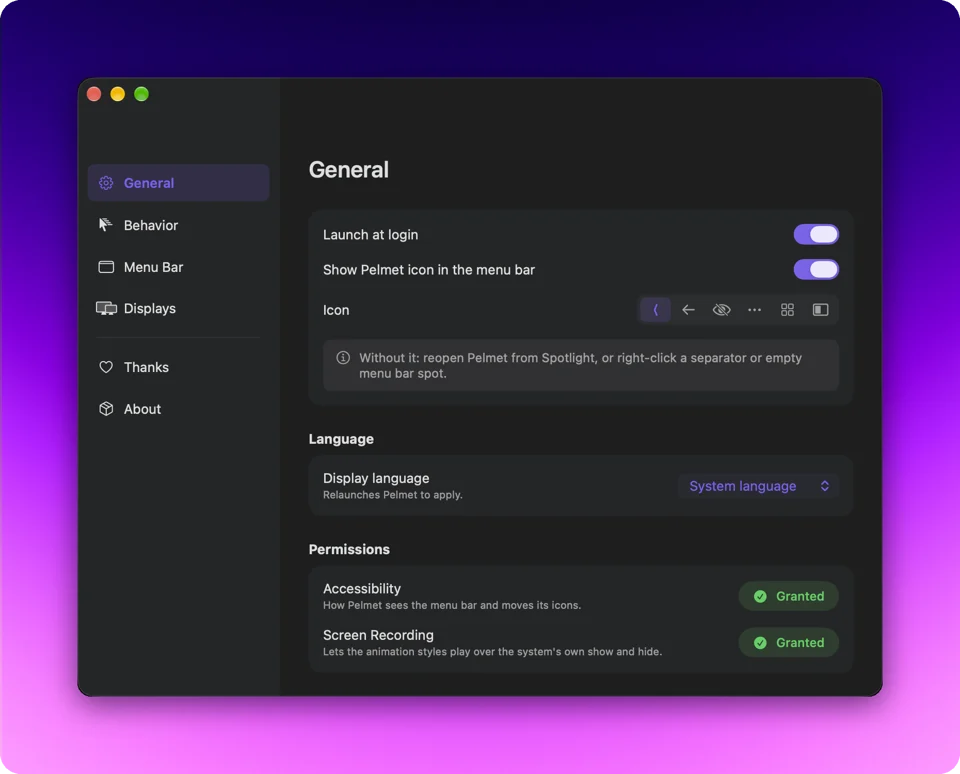
- Settings got a full redesign. Menu Bar now holds everything about your icons, and a click on any tile there opens its options. General has every shortcut in one place, and permissions you've already granted fold into one quiet line. Apply only shows up when there's something to apply.
- Show when it matters, for icons you keep hidden (#86, thanks @pzelnip). Battery shows while you're on battery or below 20%, Wi-Fi when it isn't connected, Focus while a Focus is on and Time Machine while a backup runs. Turn each one on in Settings › Menu Bar.
- Icons stay in their section. macOS sometimes drops a hidden icon right of the chevron, after a ⌘-drag or when an app relaunches into a crowded bar. Dimble moves it back on its own once you leave the mouse and keyboard alone for a couple of seconds. This needs Dimble's icon in the menu bar (#80, thanks @Erimus-Koo).
- An icon you drop into Hidden or Always Hidden in Settings crosses the arrow on its own a few seconds later, no Apply needed.
- Shortcuts can be turned off. Hover one in Settings and click the ×, or press ⌫ while recording, so another app can have the combo. ↺ brings the default back (#79, thanks @gasparschott).
- Media controls comes and goes while something plays, like Camera & mic, with a While playing or Always choice. Sounds under 5 seconds don't count, so a screenshot shutter doesn't bring it out.
- Search has its own tab in Settings, with a command bar to try it in and your aliases and shortcuts. Alias and Shortcut… on any icon opens it with that icon ready.
- The right-click menu on Dimble's icon leads with Search and Settings, and shows the shortcuts for Hide Items and Show Always Hidden Too.
- Release notes show up in the update window, and About has a "What's new in this version" link.
Changed:
- Pelmet is now Dimble. On its first launch after the update, the app renames itself from Pelmet.app (or Pliss.app if you ran 0.3.2-beta.7) to Dimble.app and opens again.
- The app icon is a D now, same dots.
- Logs are now in ~/Library/Logs/Dimble/dimble.log, and your old logs move there too.
- The website is dimble.fif7y.com and the repo is github.com/fif7y/dimble. Old links keep working.
- If you installed with Homebrew, the cask is dimble now. Once the app has updated itself, quit it, run brew reinstall --cask --force fif7y/tap/dimble once, and open Dimble again.
Fixed:
- A double-click on the chevron reveals Always Hidden too, like the settings say. It only worked in empty menu bar space, and on the chevron the second click shut the bar again (#77, thanks @kaypeter87).
- ⌥-click on the chevron reveals Always Hidden on macOS 27 too. macOS 27 wasn't saying the ⌥ key was down, so it acted like a plain click.
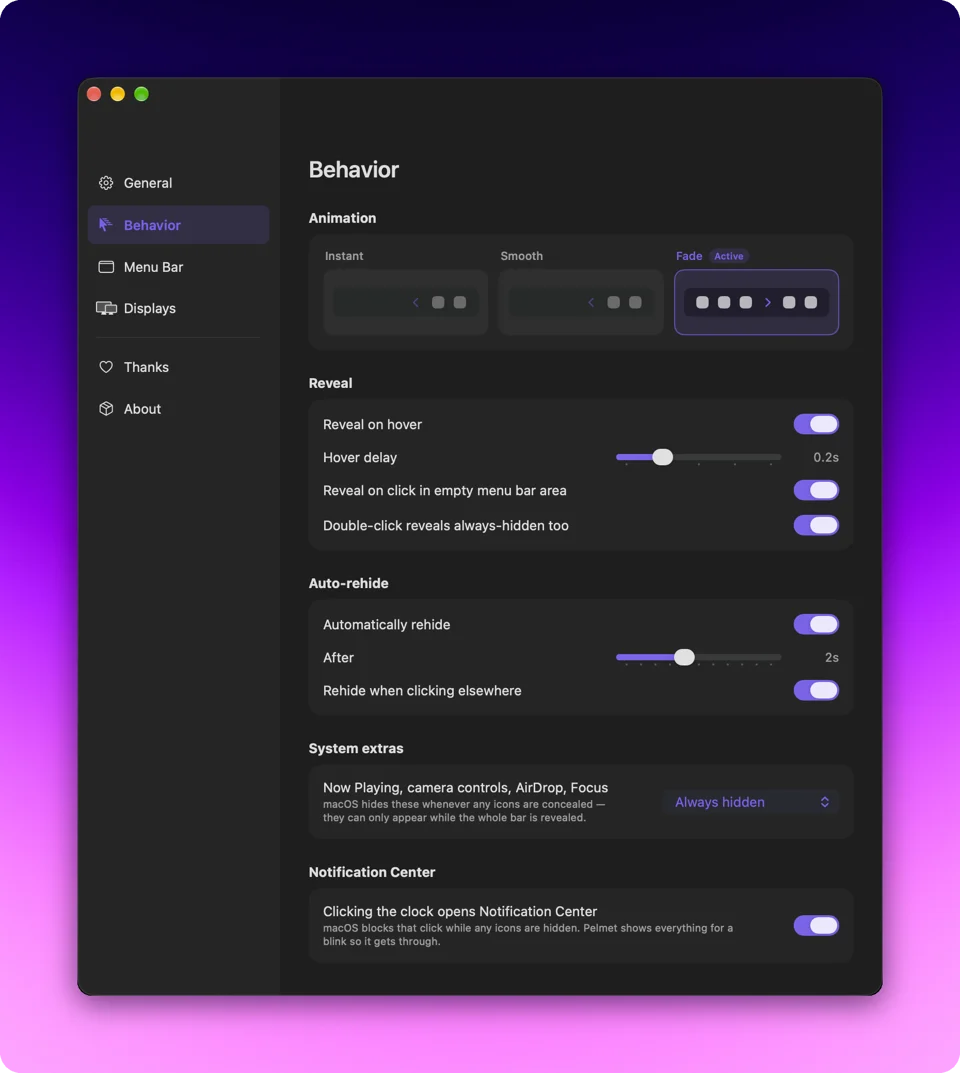
- Clicking the clock opens Notification Center again on macOS 27.2, where it flashed open and closed right away. It also opens on Macs where the app thought it was already open (#81, thanks @2f4vwwb5t6-gif). A second ⌥⌘N closes it for good.
- Hover reveal works on the first visit after you hide icons with the shortcut or from a menu. The hover zone also ends at the chevron as it's drawn (#84, thanks @swhitlow).
- Icons that come from a helper app take the app's name. Fantastical showed up as 85C27NK92C… (#81, thanks @2f4vwwb5t6-gif).
- An icon you move to Visible crosses the arrow on its own on a bar with none of Dimble's own icons on it. It used to wait for them forever (#81, thanks @2f4vwwb5t6-gif).
- Reordering inside Hidden or Always Hidden applies. When two moves would do, Apply moves the icon you dropped and not its neighbour.
- An icon you ⌘-drag stays where you dropped it, past one of Dimble's own icons or on another display's bar.
- Clicks open menus again after an Apply. The app could leave ⌘ held after its last drag.
- Hidden icons hide again on their own after the app starts with the screen locked. The media control gets placed again after a track change on a locked screen.
Also:
- The Apply button goes grey once the menu bar matches your settings. The "Your menu bar is full" note is now "N behind «" at the top of the Menu Bar pane, and only shows while the bar stays full.
- A locked Mac no longer reads the menu bar every 2 seconds all night.
0.3.1Pelmet Search, Apple's camera controls back when you need them, a Shortcuts item, and every fix from five betas.
Pelmet Search, Apple's camera controls back when you need them, a Shortcuts item, and every fix from five betas.
There's a brand new website too, pelmet.fif7y.com. It's in the same ten languages as the app, with a page for the features and one for support.
Press ⌥⌘K, type a few letters, press Return. That icon's menu opens right from its real icon in the menu bar, and the arrow keys work like they normally do. It works for hidden icons too, there's nothing to reveal first (#73, thanks @fgsconsulting).
- It knows the short names people type, like bt or wifi.
- It learns. The icons you open most come first, and a few letters you've
picked twice for the same icon go straight to it. All of it stays on your Mac, with a reset in Settings › General.
- ⌘K on a result shows what you can do with it, like moving it to another
section or giving it its own keyboard shortcut.
- The settings are in there too. Type "hover" and Return opens the settings
on that row.
- ⌘↩ shows the icon in the bar without clicking it.
Change the shortcut in Settings › General, or pick "Search…" from Pelmet's right-click menu.
New:
- A click on Pelmet's Camera & mic item opens Apple's own camera and screen
sharing controls (#68, thanks @rd-david-wahlandt, and #72, thanks @dartiss). macOS takes that pill off the bar as soon as any icon is hidden, and with it video effects, Mic Mode and Stop Sharing. Pelmet brings the pill back for a moment to open its panel, then hides the bar again. A SharePlay session with no call lives in the same pill, so the item wears the SharePlay glyph while one's live. A right-click still opens Privacy settings.
- A Shortcuts item, your whole Shortcuts library in one Pelmet menu. macOS
takes the Shortcuts "Menu Bar" controls off the bar as soon as any icon is hidden. The item lists your shortcuts instead, unfiled first, then one submenu per folder, and a pick runs it.
- ⌃⌥⌘, reveals Always Hidden too, and a second press hides it all (#67,
thanks @C3PO-1). With the icon off there was no way to reach Always Hidden. It's in Settings with the other shortcuts.
- A dot style for Pelmet's icon, filled while icons are hidden and an
outline while they're shown (#62, thanks @samismustard).
- The app icon is Liquid Glass now, so macOS draws its dark, clear and
tinted looks itself (#63, thanks @samismustard).
- The right-click menu has an Animation submenu, so you can switch the
reveal style without opening the settings.
Fixed:
- A click on the clock no longer moves your pointer (#74, thanks @brodly).
Pelmet presses the clock directly now. Some macOS builds never open Notification Center from that press (27.0.1 is one), so Pelmet notices after the first miss and replays your click under the pointer from then on.
- A Focus that ends while your Mac sleeps now turns off in Pelmet when it
wakes (#70, thanks @GianAndris). A click on the Focus item opens the Focus panel on a Mac in any language, and Focus settings when Control Center is hidden. A Focus left on for days shows again after Pelmet relaunches.
- A ⌘-drag could lose track of the icon you moved (#64, thanks
@GianAndris). Pelmet now waits for the drop, and Apply stops moving icons that are already where they belong.
- On a Mac in another language than English, the Notification Center
shortcut opened the panel and closed it again (#58, thanks @robinhur).
- Two clicks close together could draw stale copies of your icons next to
the real ones (#61, thanks @samismustard).
- Apply's report now says only what it couldn't move, and it goes away with
the tab (#60, thanks @oantonov).
- An icon macOS took off the bar by itself was shown as refusing to hide
(#66, thanks @robinhur). The editor now says what happened.
- A click on the clock is quicker. The picture of the empty bar is kept
until one of Pelmet's own icons changes, instead of being retaken after every reveal. It also stops just before the clock, so the time you see is never a minute old.
- New Pelmet items land right of the chevron, before the clock.
- With a smooth reveal on a second display, the Sound icon slid with the
others instead of popping in once they had settled.
- A quick hover in and out no longer shows the hidden icons twice.
- A trackpad scroll down a long settings tab, then a click on Displays, no
longer leaves every tab blank.
Also:
- Pelmet uses less CPU while you move the mouse. Only the moves near the
menu bar reach it now.
- The translations use macOS's own words, and the menus that stand in for
Apple's use Apple's wording in every language.
- The menu bar's ink (light or dark) is broadcast to the apps Pelmet hides,
so an app drawing its own status band can match it.
0.3.0Pelmet no longer moves your icons on its own. Up to 0.2.40 it kept every icon at the slot the editor showed, dragging it back after a reveal, a relaunch or a ⌘-drag. 0.3.0 only records where your icons are. The editor is a drawing, and one button lays the bar out to match it.
Pelmet no longer moves your icons on its own. Up to 0.2.40 it kept every icon at the slot the editor showed, dragging it back after a reveal, a relaunch or a ⌘-drag. 0.3.0 only records where your icons are. The editor is a drawing, and one button lays the bar out to match it.
Changed:
- The editor is a drawing. Reorder icons, move them between sections, add
separators: nothing moves in the bar until you press Apply, which lays the whole bar out in one pass with the pointer hidden for a moment and reports what it did next to the button. Discard puts the drawing back to what the bar shows, drags between sections included. A drawing that ends up matching the bar again clears itself.
- Upgrading keeps your bar exactly as it is. If the order 0.2.x had stored
for a section differs from what is on screen, it shows up once as a pending edit: Apply reproduces it, Discard keeps the bar as it stands.
- An icon dragged to another section hides with that section at once but
stays where it sits until Apply moves it. Its tile says so.
- Opening the editor no longer reveals the bar. Apply reveals what it needs
and puts everything back.
- A ⌘-drag in the bar is exact: the icon stays where you dropped it, and a
drag across the chevron changes its section. Dragging while the bar is collapsed reveals the hidden section so you can drop into it.
- A full bar is handled: Apply opens macOS's own « for an icon drawn behind
it, moves it, and closes the « again. An edit for an icon it could not reach stays pending.
- Separators are edited on their tiles, and the strips are the whole
editor. A new separator is part of the drawing: Apply places it, Discard removes it. The Menu Bar tab now sits above Behavior, and separators live under the row that says where new icons land.
- Icon spacing. Settings › Behavior has one slider for the gap between
menu bar icons, from 1 point to 28, macOS default in the middle. It's macOS's own setting: Apply writes it, restarts the system icons and relaunches Pelmet so the clock, Control Center and Pelmet's own items change at once; other apps follow when they next open, or log out and back in. Reset puts the default back.
- Control Center hides. Its tile sits next to the clock's in the editor:
drop either in a hidden section and it goes with it. Both say what macOS does with them: they hide, they never move, and they offer no launcher (icons macOS hosts itself share one bundle, so a launcher for one would draw nothing).
- Hover to settled is much faster. A warm reveal or conceal that took a few
hundred milliseconds now settles in a few tens, and the bar picture is on screen within the first frames of a hover.
- Hovering the chevron itself counts as hovering the bar.
New:
- A "New items" tile in the editor shows where icons Pelmet has never seen
will land.
- Update reminders. A pending update shows as a banner on every Settings
pane with an Update button, as a line under Settings in the right-click menu, and as a green chip on About in the sidebar, with a daily reminder until you install it.
Fixed:
- Launching with music playing on a Mac with a second display could delay
startup by eight seconds: the media control was on the other display's bar all along and Pelmet waited for it anyway.
- A media control that showed and hid within the same second is no longer
dragged to the left edge of the bar.
- After a capture shifts the bar, the next reveal shifts its picture along
instead of retaking it, so the hidden icons no longer flash in.
- A bar picture could stay on screen after the Notification Center
shortcut, for hours in one case (#52, thanks @robinhur). A picture raised after its blink had already been dismissed had nothing holding it, and the safety timeout could no longer reach it. The timeout now always fires, a dismissed blink refuses late pictures, a shortcut press during a blink is ignored, and every cover carries an id in the log.
- On a Mac with several displays the Notification Center shortcut opened
the panel and closed it again, sometimes on another display (#53, thanks @robinhur). The panel's window can take longer to show than the check waited, so a retry pressed the clock a second time. It now waits longer, presses the clock on the display the pointer is on, and never falls back to a click that moves the pointer.
- The shortcut recorder did nothing when clicked on rows with little
room, in Korean in particular (#54, thanks @robinhur). Starting to record widened the chip, the row moved the control below the caption, and the recorder there was a fresh one. The chip now reserves its width.
- A shortcut macOS already uses, such as ⌥A, was accepted and never fired
(#55, thanks @robinhur). The row now says macOS has it and where to turn it off.
- A shortcut recorded with a non-Roman input source active was named
after that layout (⌥ㅁ for ⌥A under Korean input) and kept the name. The key is now named from the Roman layout, the way macOS names its own shortcuts (#56, thanks @robinhur).
- Source
- GitHub releases
- Last checked
Similar apps
- Ice
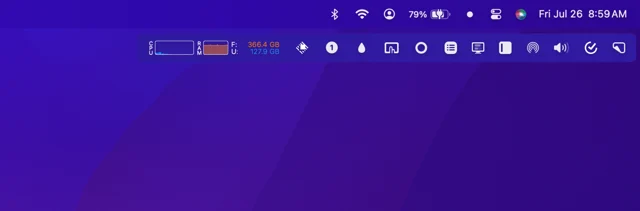
 IceMenu bar manager that hides, reveals and reorganises the icons you do not need.FreeWinding down
 - Dimble
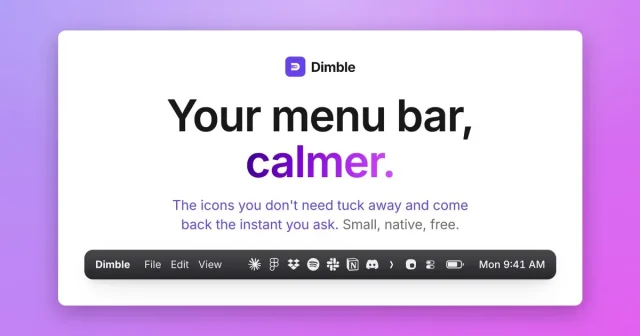
 DimbleTop pickHides the menu bar icons you do not need until you ask for them.Free
 - Thaw
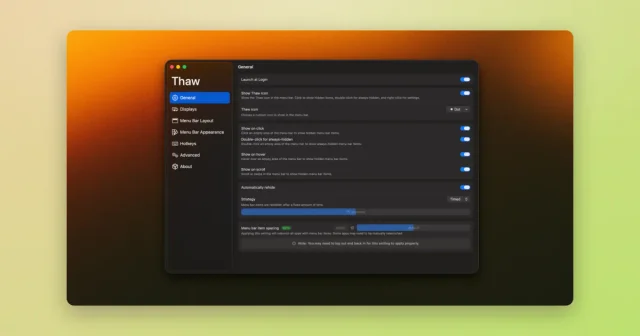
 ThawTop pickHide, reveal, and rearrange your Mac menu bar icons, with profiles and triggers.Free
 - Hidden Bar
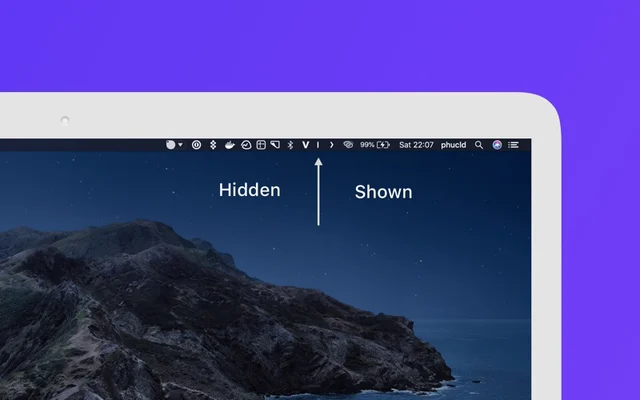
 Hidden BarHides the menu bar icons you do not need, behind a divider you can drag.Free
 - ExtraBar
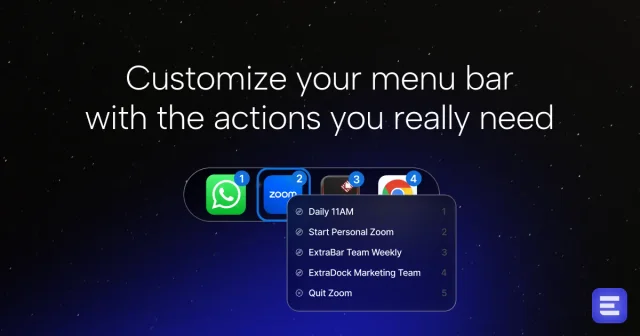
 ExtraBarA second menu bar with its own icons and controls.Paid
 - Bartender 6
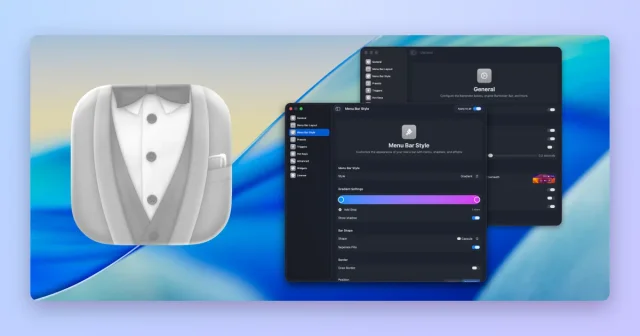
 Bartender 6Hides, groups, and rearranges menu bar items, with triggers and presets.Paid
 - JigTail
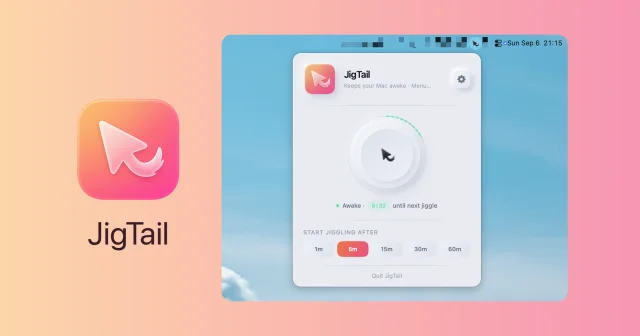
 JigTailKeeps the Mac awake only once you step away, from the menu bar.Free
 - Menuist
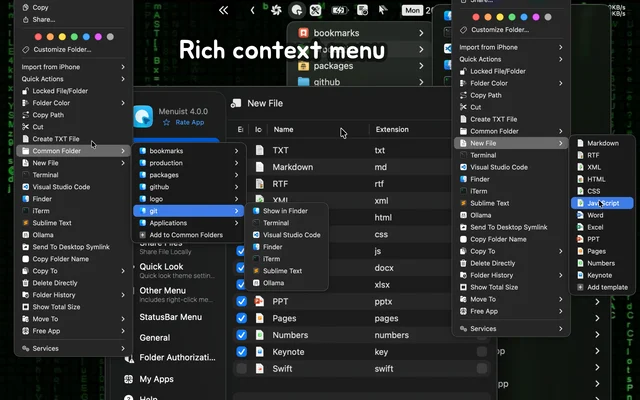
 MenuistA configurable Finder right-click menu, plus a file navigator in the menu bar.Freemium