Sundown
v1.6.3, released this week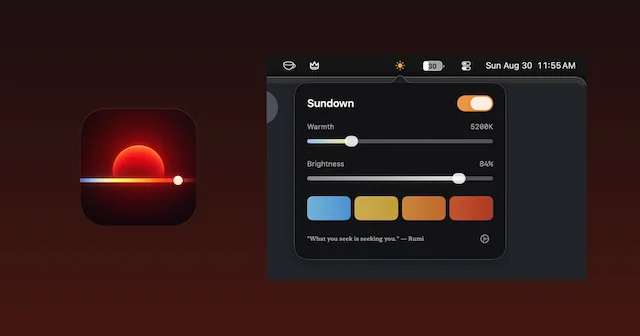
About
Sundown is a Mac menu bar app that warms and dims the display. Warmth runs from 6500 K down to 500 K in 100 K steps, from daylight white to a deep red for late-night work, and brightness sits beside it in the same small panel. macOS 14 or later, Apple Silicon and Intel. 7-day free trial on the monthly and annual plans, then $4.99 a month, $39 a year or $79 once.
- Price
- Paid
- Version
- 1.6.3 · Oct 25, 2026
- Platforms
- macOS
- Category
- Menu Bar
Featured badge
Make Sundown yours: show the badge on its site and the listing marks itself as linked back.

<a href="https://macgrove.app/apps/sundown">
  <img src="https://macgrove.app/badge/sundown.svg" alt="Featured on MacGrove" width="256" height="32" />
</a>[](https://macgrove.app/apps/sundown)What’s new
All 23 releases1.6.3Latest · yesterday
Your schedule now holds each step until its time, and your licence key fills in even if you copy it after Sundown opens.
Improved
- Schedule steps that hold. Each step keeps its warmth and brightness right up to the next step's time, and then the screen changes over a few seconds instead of drifting slowly beforehand, so you always know what your screen will look like.
- Rounder sliders. On macOS 26 and later, the coloured part of each slider now ends in a round tip under the knob.
- One sunset on the Schedule tab. The photo at the top of the Schedule tab is now always the same sunset instead of changing as you look at it.
Fixed
Earlier
1.6.2New backgrounds for the dropdown, a clearer Schedule tab, and smoother brightness and warmth keys.
New backgrounds for the dropdown, a clearer Schedule tab, and smoother brightness and warmth keys.
New
- Panel background. In Customize you can choose what sits behind the dropdown: Black as before, a Nature photo with a soft blur, or one of two red Textures.
- A new Schedule tab. It opens with a photo and a button that turns on our recommended schedule in one tap, and each step has its own card with the time in large type.
- Quit Sundown in Settings. Settings now has a Quit Sundown button.
Improved
- Smoother brightness and warmth keys. F1 and F2 now dim and brighten at the same smooth pace as Apple's own brightness keys, and Shift+F1 and Shift+F2 change the warmth just as smoothly.
- Updates arrive sooner. Sundown checks for a new version every 4 hours instead of once a day, and after you click to update it shows that it is getting the new version ready.
- A refreshed Home and setup. Home opens on your charts, setup is simpler and quicker, and it has a new slide about giving Sundown as a gift.
- An easier sun to spot. On a light menu bar, the Sundown sun now has a thin edge so it stands out. The switch style called Classic is now called Glass.
Fixed
- Turning off Accessibility. If you switched off Sundown's Accessibility permission while it was running, your keyboard and mouse could stop responding for over a minute. Sundown now notices much sooner and gets out of the way.
- The setup tour on newer macOS. The tour finds Sundown in the menu bar reliably on the newest macOS, and clicking the sun during the tour now opens it as it should.
The Sundown team
1.6.1One Sundown for every Mac on macOS 12 Monterey or later, a guided Welcome for new installs, and a fresh look for Home and the dropdown.
One Sundown for every Mac on macOS 12 Monterey or later, a guided Welcome for new installs, and a fresh look for Home and the dropdown.
New
- One download from macOS 12 up. Sundown now runs on macOS 12 Monterey and every version since, on Apple Silicon and Intel, so there is no longer a separate build for older Macs. If you were using Sundown Classic, this update replaces it and your licence carries over as it is.
- A guided Welcome. A new install now starts with a short tour that shows you Sundown one step at a time on your own menu bar, and Return takes you to the next step.
- Your schedule and keys, on from the start. On a new install the recommended schedule and the F1 and F2 brightness keys are already on when the Welcome ends, so there is nothing to switch on first. You can change either one any time in Settings.
- A Scene switch. In Customize, under Menu Bar, Switch style has a new Scene option that turns the dropdown's on and off switch into a small night sky that turns to sunset.
Improved
- A new Home. Home now opens on Tonight, which tells you what your screen is doing and what comes next, with Your evenings right below it.
- A glass dropdown. On macOS 26 the dropdown is now made of real Liquid Glass. On earlier versions of macOS it keeps the look you already know.
- The warmth slider follows your schedule. While your schedule is warming the screen, the slider in the dropdown now shows the warmth you can actually see, instead of the last value you set by hand.
Fixed
- The menu bar number matches your screen. With Show Temperature on, the number next to the sun now shows the warmth on your screen while a schedule runs, not the last value you picked yourself.
- Settings no longer hides the dropdown. Opening Settings from the gear used to make the dropdown vanish until you clicked again. Now it stays where it is, just under Settings.
- Reduce Display Dithering holds after sleep. If you have it switched on, Sundown now applies it again when your Mac wakes, because a wake could quietly turn dithering back on while the switch still read on.
The Sundown team
1.5.3This one is mostly about the menu bar. If Sundown finds its sun hidden after launch, it now offers help.
This one is mostly about the menu bar. If Sundown finds its sun hidden after launch, it now offers help.
New
- Help when the sun is hidden. A few seconds after launch, Sundown checks that its sun is in your menu bar. If it isn't, Sundown may try once to put it back. If it stays hidden, Sundown offers help through a notification or its menu. On macOS 26, a button in that menu opens Menu Bar settings for you. While the sun stays hidden, Sundown asks once per version.
- Setup points to the right switch. On macOS 26, the menu bar step in setup now says where to turn Sundown on. It's under Allow in the Menu Bar, and a button below opens those settings for you.
Improved
- Two switches start off for new installs. If you're new to Sundown, Ambient Dimming and the feedback box start off. You can turn either one on in Settings. If you already use Sundown, both stay exactly as you had them.
Fixed
- The bezel stays where you put it. Drag it somewhere, then try another design in Customize, and it stays in the same spot. If you'd dragged it before updating, Sundown keeps the spot from the design you were using.
The Sundown team
- Source
- The app's update feed
- Last checked
Similar apps
- DisplayBuddy
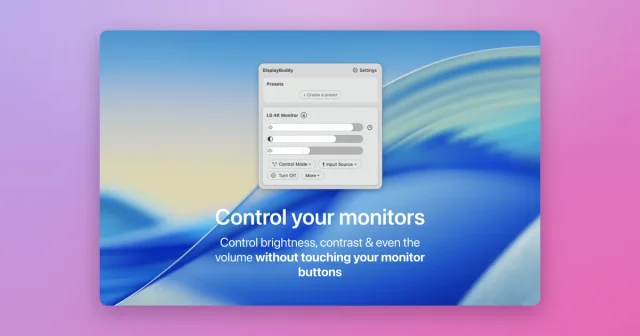
 DisplayBuddyReal brightness, contrast and volume control for external monitors.Paid
 - HazeOver
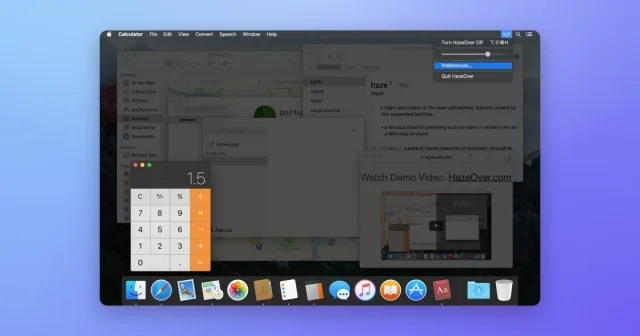
 HazeOverDims every window except the one you are working in.Paid
 - Thaw
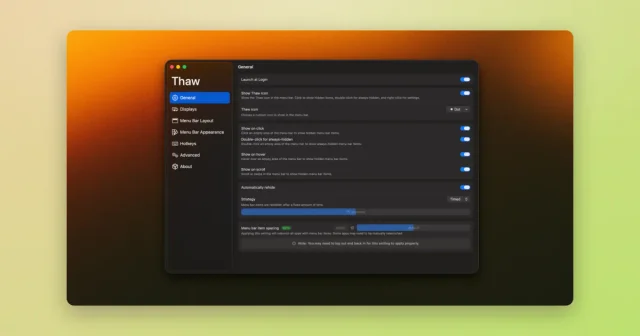
 ThawTop pickHide, reveal, and rearrange your Mac menu bar icons, with profiles and triggers.Free
 - Ice
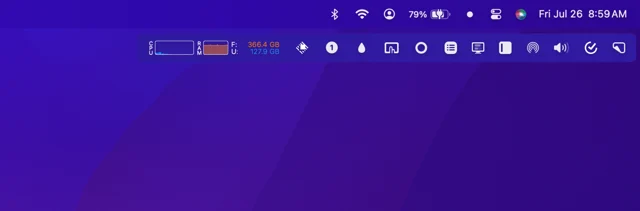
 IceMenu bar manager that hides, reveals and reorganises the icons you do not need.FreeWinding down
 - RainDesk
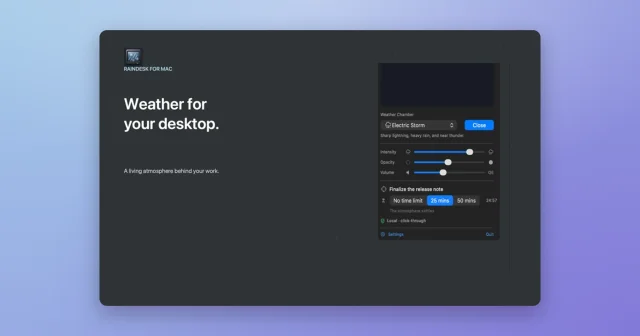
 RainDeskRain, snow and fog behind your Mac windowsPaid
 - Lungo
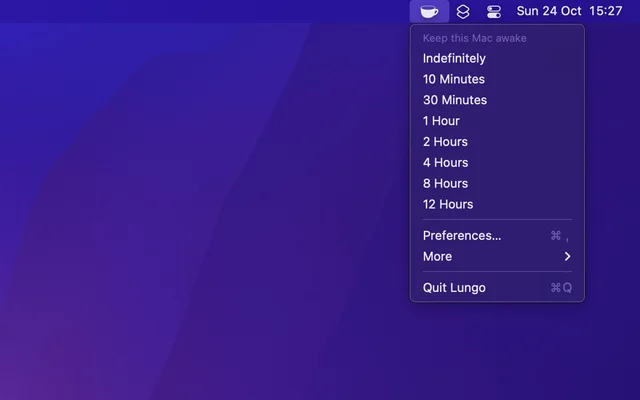
 LungoKeeps the Mac awake and the screen lit, until you say otherwise.Paid
 - JigTail
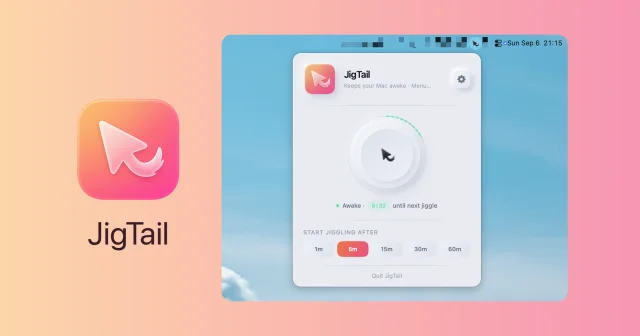
 JigTailKeeps the Mac awake only once you step away, from the menu bar.Free
 - Dimble
 DimbleTop pickHides the menu bar icons you do not need until you ask for them.Free